How to Enable Subtitles on MovieBox App?
MovieBox has a content library that is way above what one can imagine, from movies from Hollywood to Bollywood and Korean dramas to classic Western television shows; every genre is offered here at MovieBox. When watching foreign language films and shows, subtitles are not a luxury, it becomes a necessity, and this guide walks you through complete information about using and enabling subtitles properly.
All the content such as movies, series, and dramas available on the MovieBox app is provided in official languages and dubbed into other languages, and is subtitled in many languages. The app also allows you to stream anime with the necessary subtitle files. More importantly, it allows people to stream movies offline, which means they can download the movie with subtitles in standard or high picture quality and watch it later without an internet connection.

Why Do Subtitles Matter While Watching Movies?
At first glance, reading film subtitles while watching a film appears to be extra work. However, our brains are remarkably adept at multitasking in this specific way. The presence of text actually creates a unique cognitive dance. Film subtitles are much more than a simple translation. They are powerful psychological elements that actively shape how we perceive, feel, and remember a piece of art. For creators, marketers, and brands, understanding this impact is the key to forging deeper and meaningful connections with the audience.
Subtitles act as a subtle guide, directing the viewer’s eyes and anchoring their attention to the screen. By displaying a textual cue, film subtitles help prevent the mind from wandering, ensuring key dialogue and narrative points are not missed. The subtitles enable viewers to hear the original actor’s emotional performance, tone, pauses, and cries while understanding the meaning, leading to a richer, more empathetic experience.
Subtitles can create a sense of direct communication, as if the character or the narrator were conveying the message directly to you. Furthermore, for viewers who are hard of hearing, foreign spectators, or in sound-sensitive scenes, subtitles break down barriers, making the emotional content accessible and inclusive.
How to Enable Subtitles on MovieBox APK (Explain Step-by-Step)
If a person is interested in streaming the film with subtitles, then they are requested to follow these steps to set up subtitles on MovieBox APK:
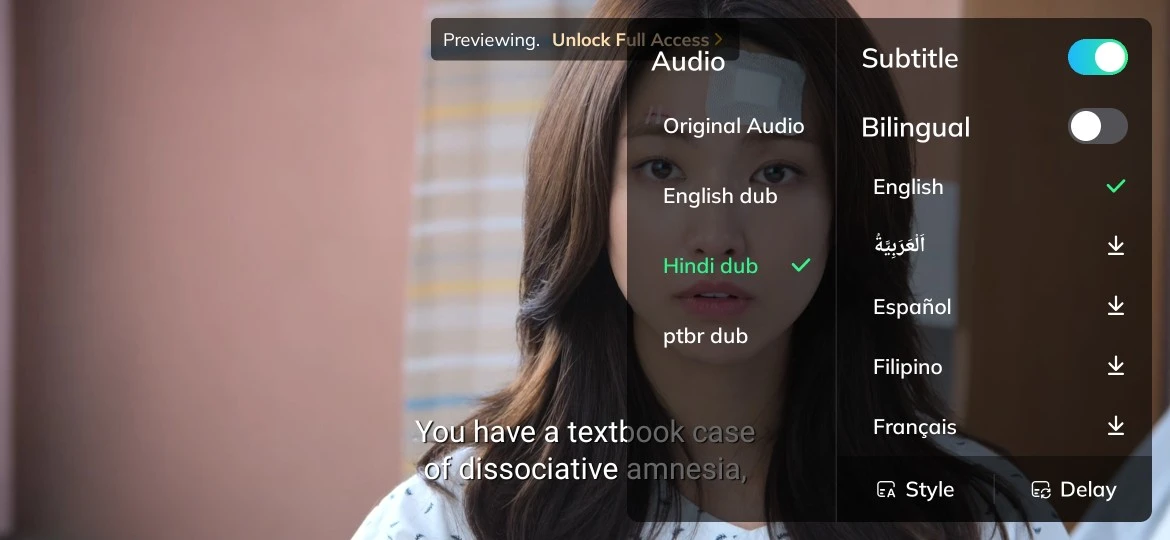
- Click on the MovieBox app and pick your movie or show.
- After selecting the movie, it will start streaming; play it in full-screen mode.
- Locate the “language” option inside the media player.
- Inside the Subtitle section, you will see the list of all languages available for subtitles for the selected video.
- Choose the preferred subtitle language, and it will be enabled and start showing on the screen.
Can I download subtitles from the internet within this app?
The viewer has the option to download subtitles from the internet within this app, and to do this, they have to navigate to the subtitle settings or options menu and find a function that allows the user to search and download subtitles directly. The individual needs to make sure that they have a reliable internet connection for a smooth downloading session. The app supports popular subtitle sources, which makes it easier to search for the subtitles that one wants for their film. One thing the user should always make sure of is that the subtitle files they are downloading are needed to match the video file so they can sync, making the film enjoyable for all.
What to do if subtitles are not properly synced?
In case the user finds the subtitles not in sync with the video, the first thing they can do is check the subtitle settings in their app to make sure the right subtitle language is selected. One can try tweaking the timing manually, since the MovieBox app allows users to manually move subtitles forward or backwards. If that fails, downloading another subtitle file that fits the version of the film is a better alternative. Also, one needs to make sure their video playback speed is normal. Playback speed changes can impact sync. Lastly, by restarting the app or device, the user can help eliminate temporary issues that cause subtitle display problems.

How to Style & Customize Subtitles on MovieBox?
If the user is interested in styling and customizing subtitles in MovieBox, they can head over to the subtitle settings in the media player. Here, you have a style option, so tap on it, and you can change font size, colour, and text background opacity to improve clarity. Also, viewers can look into text alignment choices and shadowing to make the subtitle stand out more against different backgrounds. Experimenting with the various settings, the user can discover something that suits their screen preferences for a more relaxing and customized movie session.
Conclusion
Enabling subtitles on the MovieBox app not only gives an enhanced viewing experience but also provides accessibility and understanding of the film that one is watching. The subtitle settings are easy to navigate, and users can easily enable or customize the subtitles based on their mood. Downloading subtitles from reliable sources ensures proper synchronization with the video. If the viewer wishes, then by following the aforementioned steps, they can watch their favourite films and shows with the added benefit of subtitles, making it a more enjoyable and inclusive experience for all.